Custom Scatter
User-defined scatter plots from any logged channels
The Custom Scatter page lets you build ad-hoc scatter plots from any combination of channels in your logs. Pick the X, Y, and (optional) Z axes, add filter rules to narrow the data down to specific operating conditions, and save the resulting view as a named preset for quick recall.
The page is useful for diagnostics that don't fit the dedicated tuning pages — examining a sensor channel, checking the relationship between two inputs the standard pages don't pair, or comparing the behaviour of a raw log column against a derived channel.
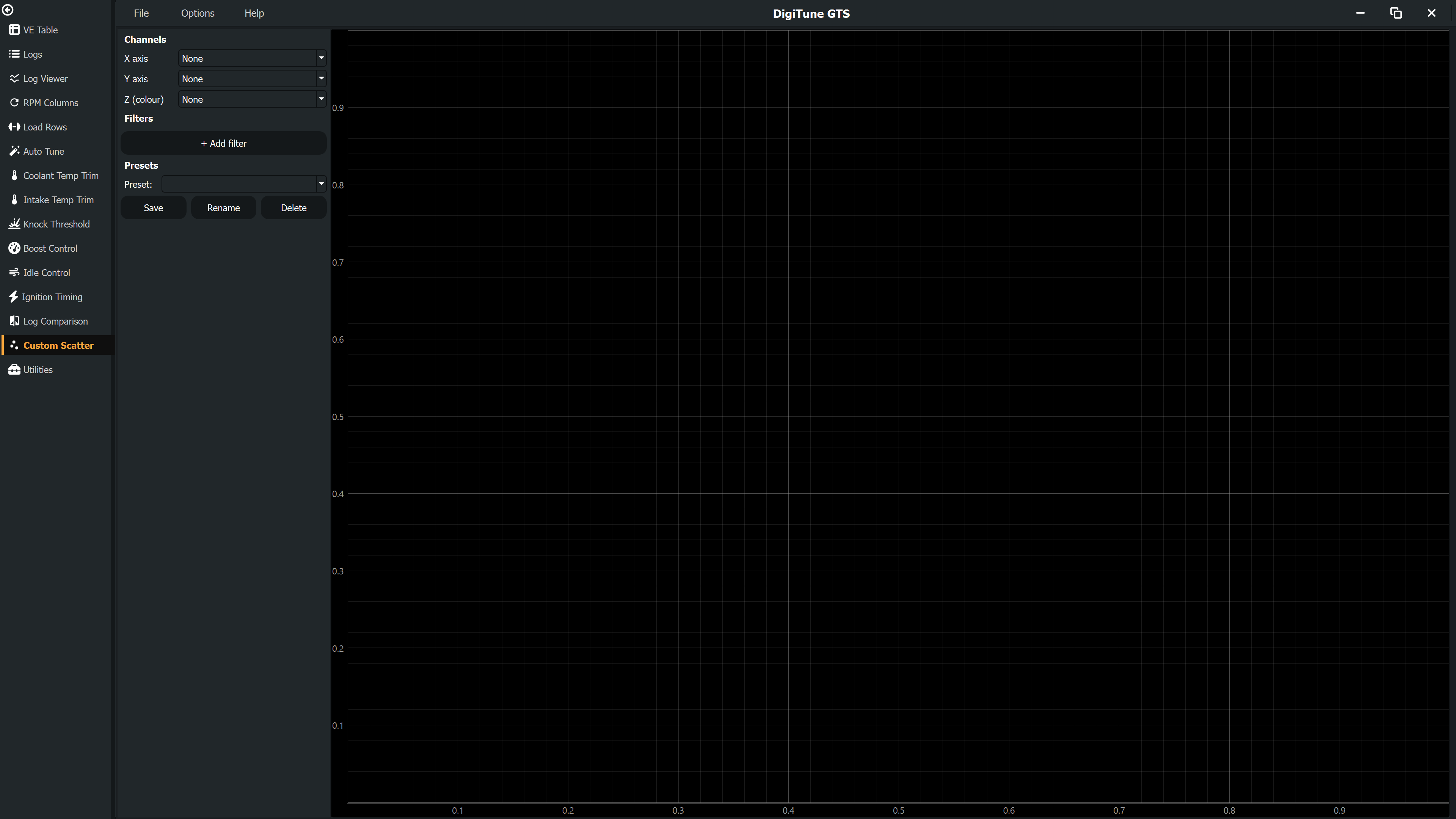
Choosing channels
The Channels section on the left has three dropdowns:
- X axis
- The horizontal axis channel. Choose any canonical, raw, or derived channel, or
Timeto plot against log time. - Y axis
- The vertical axis channel.
- Z (colour)
- Optional. When set, each scatter point is coloured by the Z channel's value at that sample. Leave as
Noneto use a single colour for all points.
The dropdowns list every channel available across the currently included logs (canonical channels first, then raw log columns).
Filters
Filters restrict the displayed scatter to samples where each chosen channel falls within a specified range. Click + Add filter in the Filters section to add a row.
Each filter row has:
- A channel dropdown — the channel to test.
- A comparator —
between,<,<=,>,>=,==, or!=. - One or two value fields.
betweenuses both (inclusive); the others use just the first. - A × button to remove the filter row.
Filters are combined with AND — a sample must pass every filter to appear on the plot. The plot updates live as you edit filter values.
Presets
A preset stores your channel selection, filter rows, and Z-colour mapping. Use presets to revisit specific diagnostic views without re-configuring them from scratch.
Saving a preset
- Configure channels and filters as you want them.
- Click Save in the Presets section.
- Enter a name. Choose an existing name to overwrite.
Loading, renaming, and deleting
Pick a preset from the Preset dropdown to load it. The Rename and Delete buttons act on the currently selected preset. If you modify a loaded preset, a dirty marker appears in the dropdown so you can switch back to the on-disk version without losing the in-progress changes.
Preset files are stored in
%LOCALAPPDATA%\DigiTune\GTS\CustomScatterPresets\.
Multi-log behaviour
When more than one log is loaded and included, Custom Scatter pools data across all of them — the same way the dedicated tuning pages do. Each filter applies to the merged data set, so a filter on (for example) CLT will exclude cold-engine samples from every loaded log.