Customising Hotkeys
Rebinding the keyboard shortcuts used on tuning pages
The Hotkeys page lets you change the key bindings for every action exposed as a hotkey — table editing, navigation, save / reload, undo / redo, and the row-0 variants used on the Boost page. The default shortcuts are listed in Keyboard Shortcuts; this page is only needed if you want to rebind them.
Opening the Hotkeys page
From the top menu bar, click Options → Hotkeys. The Hotkeys page appears as a two-column table:
- Hotkey — the current key sequence for this action.
- Function — the action that the hotkey triggers (read-only).
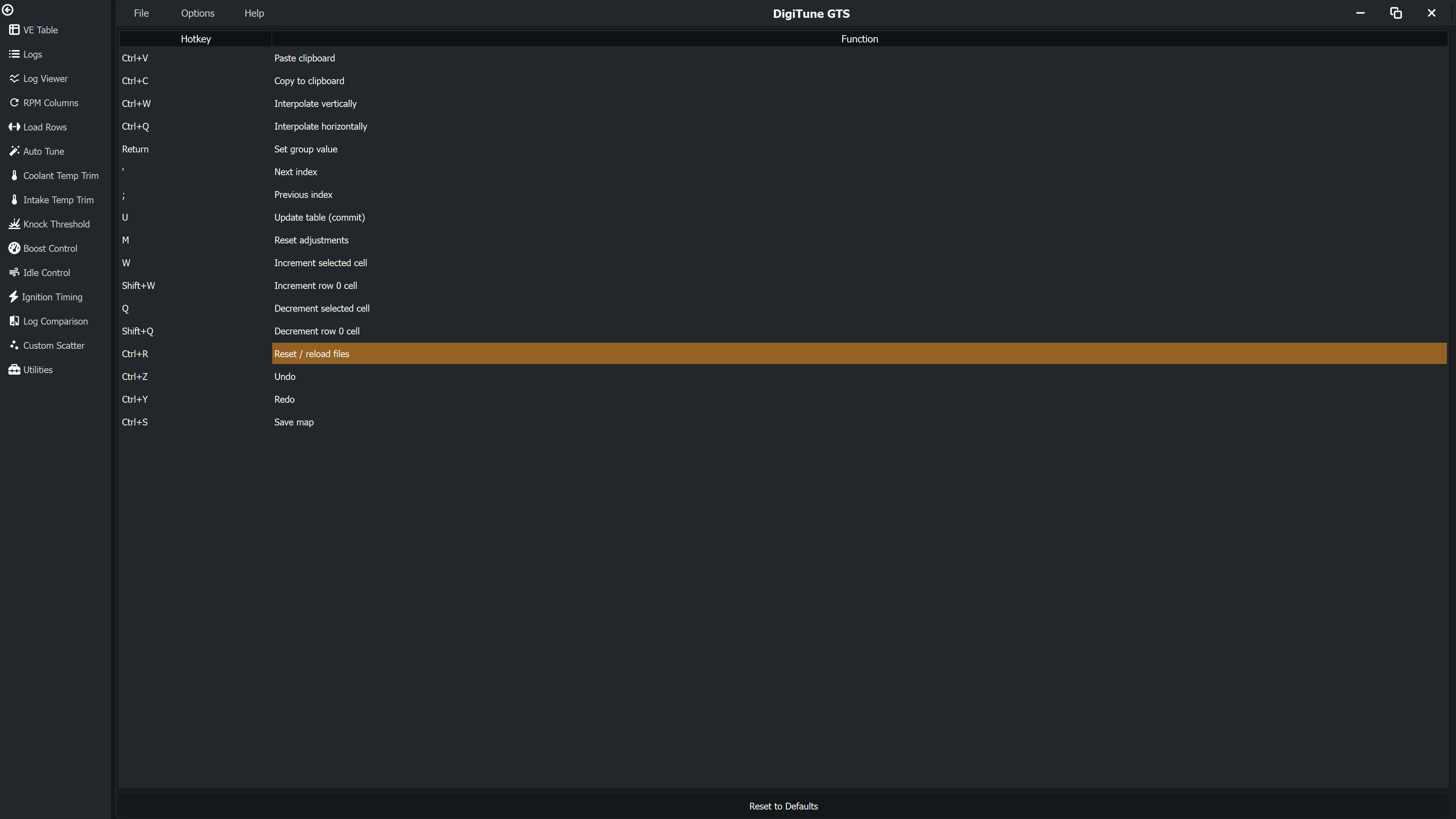
Rebinding a hotkey
- Double-click the Hotkey cell for the row you want to change.
- Press the new key combination (including any modifiers such as Ctrl, Shift, or Alt).
- Click anywhere outside the cell, or press Enter, to commit the change.
The new shortcut takes effect immediately — there is no need to restart. To clear a binding, double-click the cell and press Backspace until the field is empty.
Available actions
| Action | Default | What it does |
|---|---|---|
| Paste clipboard | Ctrl+V | Pastes tab-separated clipboard data into the table starting at the selected cell. |
| Copy to clipboard | Ctrl+C | Copies the selected cells as tab-separated values. |
| Interpolate vertically | Ctrl+W | Linearly interpolates cells between the top and bottom of a column range. |
| Interpolate horizontally | Ctrl+Q | Linearly interpolates cells between the left and right of a row range. |
| Set group value | Shift+Enter | Prompts for a number and sets all selected cells to that value. |
| Apply trim formula | = | Prompts for a formula and applies it to all selected cells. A leading operator acts on the cell value (e.g. +10, *1.2, -5, /2); or use x for the cell value in a full expression like x*1.05+1. |
| Next index | ' | Moves the RPM/Load selector dropdown to the next value. |
| Previous index | ; | Moves the selector dropdown to the previous value. |
| Update table (commit) | U | Writes pending adjusted values to the in-memory calibration. |
| Reset adjustments | M | Discards pending changes on the current page. |
| Increment selected cell | W | Adds a fixed step to all selected cells. |
| Increment row 0 cell | Shift+W | Adds a fixed step to the first-row cells within the selection (used on the Boost page). |
| Decrement selected cell | Q | Subtracts the fixed step from all selected cells. |
| Decrement row 0 cell | Shift+Q | Subtracts the fixed step from the first-row cells within the selection. |
| Reset / reload files | Ctrl+R | Reloads the currently loaded calibration and log files from disk, discarding unsaved changes. |
| Undo | Ctrl+Z | Undoes the last table edit on the active page. |
| Redo | Ctrl+Y | Reapplies the last undone edit. |
| Save map | Ctrl+S | Writes the in-memory calibration back to the original map file. |
Restoring defaults
At the bottom of the Hotkeys page, click Reset to Defaults to restore every binding to the values shown above.
Where hotkeys are stored
Customised bindings are persisted to
%LOCALAPPDATA%\DigiTune\GTS\hotkeys.json. The file is created automatically the
first time you change a hotkey; until then, defaults are used. Deleting the file resets every
binding.