Loading Files
Loading calibration maps and log files into DigiTune GTS
Loading a map file
There are two ways to import a map file:
- Click File → Import Map File in the menu bar at the top of the window.
- Or navigate to the VE Table page in the sidebar and click Import VE Table.
DigiTune GTS detects the ECU type from the file extension and content automatically — you do not need to specify the ECU type manually.
Only one map file can be loaded at a time. Loading a new file replaces the current one. Any unsaved changes to the previous map will be lost.
Use File → Clear All Files to discard everything and return to a clean state — useful when starting a fresh session.
Reading the map from a connected ECU (ME)
If you have no map file at all, you can build one from the ECU itself. Plug an ME ECU in over USB and an ECU button appears in the menu bar; choose Read from ECU there, or use the button on the ECU Connection page's Transfer tab. If nothing is loaded when DigiTune GTS starts and an ECU is already connected, it offers to do this instead of asking you for files.
The ECU stores values only — no table names and no settings names — so DigiTune GTS pairs what
it reads with the ME definition file for your ECU's definition version. Those definitions ship
with the app, so this normally needs nothing else installed. If your ECU's definition is not one
of them, you will be asked to point at the matching .medef file (MEITE keeps its own
under ProgramData); the choice is remembered for next time.
Reading every table and setting takes a minute or two, and progress is shown on the Transfer tab.
The finished map is saved under
%LOCALAPPDATA%\DigiTune\GTS\EcuMaps and opened automatically — use
Save As to keep it wherever you keep your tunes.
Flex fuel calibrations (ME)
If your ME calibration has flex fuel enabled, DigiTune GTS will automatically select either the Base VE table or the Flex VE table depending on the average ethanol content in your loaded logs. If no log is loaded yet, the Base table is used by default.
Loading log files
There are two ways to import logs:
- Click File → Import Logs in the menu bar.
- Or navigate to the Logs page in the sidebar and click Import Logs.
You can select multiple files in a single dialog. DigiTune GTS loads each file on a background thread so the UI remains responsive during loading.
Once loaded, each file appears as a row in the log list on the Logs page, showing the filename, row count, and duration in minutes.
The log list
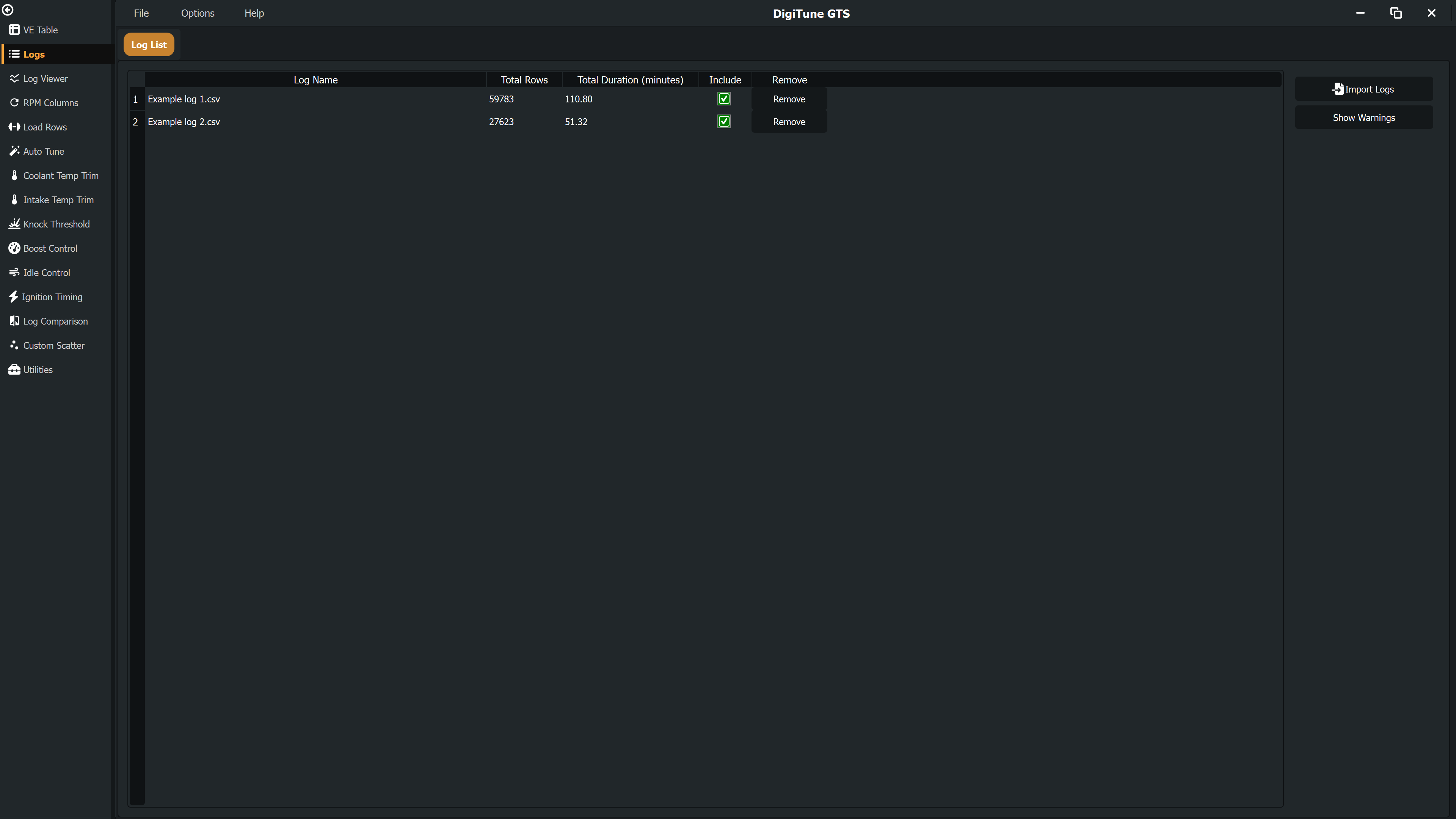
The log list has the following columns:
| Column | Description |
|---|---|
| Log Name | The filename of the log (read-only). |
| Total Rows | Number of data samples in the log (read-only). |
| Duration (min) | Total log duration calculated from the time channel (read-only). |
| Include | Checkbox. When unchecked, this log is excluded from all tuning calculations. The log stays in the list and can be re-included at any time. |
| Remove | Removes the log from the list entirely. |
Toggling the Include checkbox or removing a log triggers an automatic recalculation of all active data for every tuning page.
Supported file formats
For a full list of supported extensions and ECU-specific notes, see:
Saving changes
To save the in-memory calibration back to the original file:
- Click File → Save Map File in the menu bar.
- Or navigate to the VE Table page and click Save To File.
- Or press Ctrl+S.
DigiTune GTS preserves the original file structure and only updates the values you have changed — all other ECU settings are untouched.
If you have pending adjusted values that haven't been applied to the table, a confirmation dialog asks whether to apply them before saving. This prompt can be disabled in Settings → General.